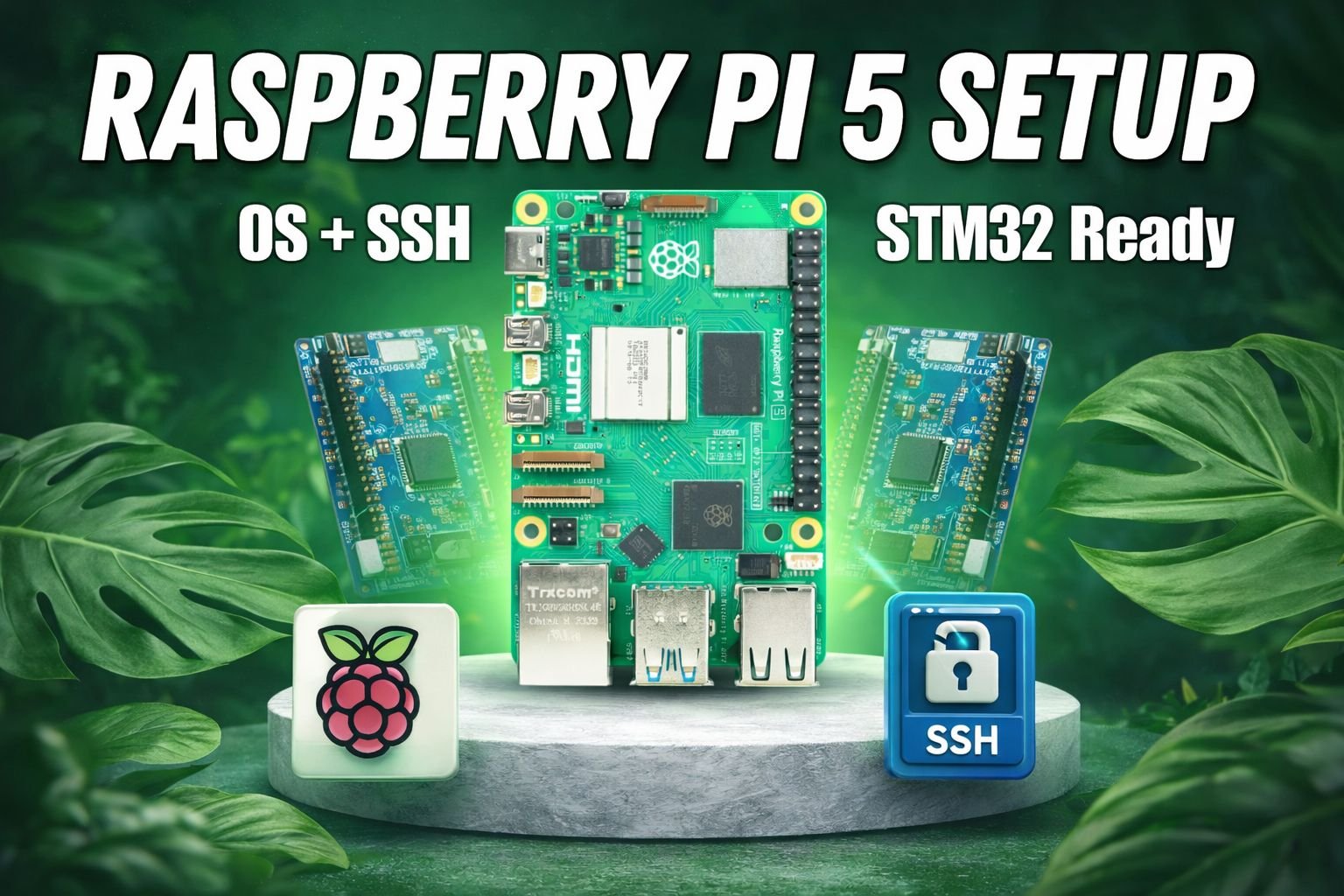
Aaj ke digital aur IoT era me Raspberry Pi 5 ek powerful aur affordable mini computer ban chuka hai. Chahe aap beginner ho, student ho ya IoT / Embedded Systems me career banana chahte ho — Raspberry Pi 5 se start karna ek smart decision hai.
Ye complete website post specially beginners ke liye design ki gayi hai, jisme hum Raspberry Pi 5 ka proper OS installation, real‑time hardware & software testing, aur remote access (SSH) step‑by‑step samjha rahe hain.
👉 Ye guide Yarana IoT Guru ke practical learning approach par based hai, jahan theory ke saath‑saath real hardware testing bhi dikhayi jaati hai.
Raspberry Pi 5 Kya Hai?
Raspberry Pi 5 ek single‑board Linux computer hai jo size me chhota hota hai, lekin kaam ek full desktop ya server system jaise karta hai. Iska use education, IoT, home automation, robotics aur industrial prototyping me widely hota hai.
Raspberry Pi 5 Ke Key Features:
- High‑performance processor (previous versions se zyada fast)
- USB 3.0 ports for high‑speed devices
- Dual HDMI display support
- GPIO pins for IoT & Embedded projects
- Linux‑based Raspberry Pi OS support
Raspberry Pi 5 Setup Ke Liye Required Hardware
Agar aap beginner hain, to setup start karne se pehle ye cheezein ready rakhein:
- Raspberry Pi 5 board
- MicroSD Card (16GB ya zyada recommended)
- Official Power Adapter
- HDMI Cable + Monitor
- USB Keyboard & Mouse
- Laptop / PC (OS install ke liye)
- Internet connection (WiFi / Ethernet)
Step 1: Raspberry Pi OS Installation (Proper Method)
Raspberry Pi ko chalane ke liye sabse pehle usme Raspberry Pi OS install karna hota hai.
Raspberry Pi OS Install Karne Ka Process:
- Apne laptop / PC me Raspberry Pi Imager download aur install karein
- Imager open karke Choose Device → Raspberry Pi 5 select karein
- Choose OS → Raspberry Pi OS (64‑bit recommended) select karein
- Choose Storage → MicroSD Card select karein
- Write button par click karein aur process complete hone dein
⚠️ Installation complete hone se pehle SD card remove na karein.
Step 2: First Boot & Basic Configuration
- SD card Raspberry Pi 5 me insert karein
- HDMI, keyboard aur mouse connect karein
- Power supply lagate hi Raspberry Pi boot ho jayega
First Boot Ke Baad Essential Settings:
- Language, country & time zone selection
- WiFi / Ethernet configuration
- Username & password creation
- System update
Ye basic configuration Raspberry Pi ko stable aur secure banati hai.
Step 3: Hardware + Software Testing (Real‑Time)
Setup complete hone ke baad proper testing bahut zaroori hoti hai. Is guide me real‑time testing dikhayi gayi hai, jisse aap practical confidence ke saath kaam kar sako.
Basic Testing Steps:
- Desktop environment properly load ho raha hai ya nahi
- Internet connectivity test
- Terminal open karke command run karein:uname -a
- USB ports, display aur connected peripherals test karein
👉 Ye sab testing Yarana IoT Guru ke tutorials me real hardware par dikhayi jaati hai.
Step 4: Raspberry Pi Me SSH Enable Karna
SSH (Secure Shell) ka use Raspberry Pi ko remote access karne ke liye hota hai, jisse aap bina monitor aur keyboard ke system control kar sakte hain.
SSH Enable Karne Ke Steps:
- Raspberry Pi menu open karein
- Preferences → Raspberry Pi Configuration par jaayein
- Interfaces tab me jaakar SSH Enable karein
- OK par click karein
Step 5: Doosre System Se SSH Ke Through Connect Karna
Windows Users Ke Liye:
- Command Prompt / Terminal open karein
- Command likhein:ssh username@raspberrypi_ip
- Password enter karein
Linux / Mac Users Ke Liye:
- Terminal me same command ka use hota hai
🎉 Ab aap apne Raspberry Pi 5 ko remote access ke through control kar sakte hain.
Raspberry Pi 5 Setup Kahan‑Kahan Use Hoga?
Ye setup aage chal kar advanced aur real‑world applications ka strong base banata hai:
- IoT Projects
- Home Automation Systems
- AI / ML Experiments
- Robotics Projects
- Server & Cloud Testing
- Educational & College Level Projects
- Embedded Systems Learning
Agar aap future me professional‑level projects banana chahte hain, to ye setup bahut important hai.
Raspberry Pi 5 + STM32 Integration (Upcoming)
👉 Isi Raspberry Pi 5 setup ke base par STM32 ke saath Raspberry Pi integration aane wali hai.
Isme aap seekhenge:
- STM32 + Raspberry Pi communication
- Embedded systems ke real‑world projects
- Industrial & IoT level applications
- Microcontroller + Linux system integration
📌 STM32 aur Embedded Systems par detailed upcoming tutorials Yarana IoT Guru par share kiye jayenge.
Upcoming Videos on Yarana IoT Guru
Aane wale time me Yarana IoT Guru par aapko ye content milega:
- Raspberry Pi 5 + STM32 Communication
- STM32 Embedded System Projects
- IoT with Raspberry Pi & Microcontrollers
- SSH, Server & Automation Tutorials
- Real‑World Practical IoT Projects
Ye Guide Kis Ke Liye Hai?
Ye complete Raspberry Pi 5 setup guide unke liye perfect hai:
- Beginners jo Raspberry Pi seekhna chahte hain
- Engineering Students (ECE / EE / CSE)
- IoT & Embedded System Learners
- Developers & Tech Enthusiasts
Conclusion
Agar aap Raspberry Pi 5 ko pehli baar start kar rahe hain, to ye guide aapko OS installation se lekar SSH remote access aur future STM32 integration tak complete learning path deta hai. Is setup ke baad aap confidently advanced IoT aur Embedded projects ki taraf badh sakte hain.
👉 Aise hi practical aur industry‑oriented content ke liye:
- YouTube Channel: Yarana IoT Guru
- Topics: Raspberry Pi, STM32, ESP32, IoT & Automation
Agar aapko ye post useful lagi ho, to ise share karein aur Yarana IoT Guru ko follow / subscribe karna na bhoolein 🚀
Happy Learning with Yarana IoT Guru 💡
📞 Contact YaranaIoT Guru Empowering IoT Innovation | ESP32 | Home Automation | Smart Solutions | 50K+ Community
We’d love to hear from you! Whether it’s IoT project queries, collaborations, tech support, custom PCB design, bulk orders, corporate training, college workshops, or freelance development — we’re just one message away.
✉️ Email (Official)
For detailed inquiries, project support, business collaboration, sponsorships, or documentation: 📩 contact@yaranaiotguru.in 📧 Alternate: support@yaranaiotguru.in ⏳ Response: Within 24 hours (Mon–Sat) 💡 Best for attachments (code, schematics, logs, etc.)
📱 Phone / WhatsApp (24×7 Support)
Instant live help, troubleshooting, project consultation, or order updates: 📞 +91 70527 22734 💬 WhatsApp: Chat Now ⏰ Call Hours: Mon–Sat, 10 AM – 7 PM IST 🚀 Emergency? WhatsApp anytime — reply within 1 hour
▶️ YouTube Channel
Step-by-step IoT builds, live coding, ESP32, Blynk, Node-RED, MQTT, Home Assistant & more: 🔗 Yarana IoT Guru 📺 1,200+ Videos | 52K+ Subs | 5.5M+ Views | 4.8★ Rating 🎥 New Video Every Week — 🔔 Subscribe & Turn On Notifications
🛠 GitHub (100% Open Source)
All codes, Arduino sketches, PlatformIO projects, Node-RED flows, MQTT configs & docs: 🔗 github.com/YaranaIotGuru ⭐ 50+ Repos | 10K+ Stars & Forks
🔥 Top Projects:
- ESP32 WebSocket Real-Time Dashboard
- Smart Home with Blynk & Alexa
- IoT Irrigation System with Soil Moisture
- MQTT + Node-RED + MySQL Logging
- OLED Weather Station with API
Daily reels, quick tips, live builds, student showcases & giveaways: 🔗 @YaranaIoTGuru 📱 10K+ Followers | Reels | Stories | Live Sessions
💼 LinkedIn (Professional Network)
B2B, IoT consulting, training, hiring & partnerships: 🔗 Yarana IoT Guru
🤝 Services Offered:
- Custom IoT Product Development
- Embedded Systems Training
- College Workshops & FDPs
- PCB Design & Prototyping
🐦 Twitter / X
Real-time updates, polls, project launches & community Q&A: 🔗 @YaranaIoTGuru 📢 Follow for instant alerts
🛠 Hackster.io (Project Showcases)
In-depth write-ups, circuits, BOM, code & ratings: 🔗 hackster.io/yaranaiotguru 🏆 50+ Projects | 100K+ Views | Top 5% Creator
🌟 Community Platforms
| Platform | Link | Purpose |
|---|---|---|
| Telegram Channel | t.me/YaranaIoTGuru | Project files, PDFs, updates |
| Telegram Group | t.me/YaranaIoTCommunity | Peer support, doubts |
| Discord Server | discord.gg/yarana-iot | Live voice help, coding rooms |
| WhatsApp Community | Join Here | Announcements & polls |
🏢 Office & Studio Address
Yarana Studio & Software (Yarana IoT Guru HQ) 📍 Near Rookh Baba Mandir, Umariya Badal Urf Gainda, Allahabad (Prayagraj), Uttar Pradesh – 212507, India ⭐ Google Rating: 5.0 ★ (100+ Reviews)
🕒 Opening Hours: Mon–Sat: 10:00 AM – 5:00 PM Sunday: Closed
🌐 Associated Website: yaranawebtech.in 🗺️ View on Google Maps: Search “Yarana Studio & Software” 📌 Walk-ins welcome |